Registering .com.np domain at 0$, Yes its free!!


Welcome to ACC!!
The topic for discussion today is ‘How can one easily register for .com .np domain at free of costs?’
Note: Please remember to get this domain you must be a Nepalese Citizen!
Now you can follow the steps as provided below:
Step 1: Open up your favorite browser and search for Nepal’s official .np Domain Registration.
Step 2: On the rightmost of the Menu Bar there is a User Login option availabe, click it.
Step 3: Now you will be redirected to a Sign in/Create user page, here you can either Sign in or Create user for a new user ID.
- If you have already signed up before i.e. already have a user ID, just fill up the Email and Password field (password for the User ID not your Email’s password) and click the Sign in button.
- Otherwise you need to sign up by clicking the Create User button. This will direct you to a page with a fill up form.
Here, just fill the form with the information as asked and click Create account button.
Then you will be asked to verify your email. Open up your mailbox that you provided in User Email field and check for the email, open up and click Verify button. Login again if necessary. - Now you are ready to move forward to next step.
Step 4: Now in the Apply new domain box, search for the domain name you want to register. For the info about valid domain names, read the article – Terms and Conditions point no. 3 and 6.
- If its says – The domain name format is invalid , then try a simple domain as suggested above.
- If its says – Already taken! , choose a different one.
- Finally, if you get congratulated for Available, now click Register now and go to next step.
Step 5: Here, you will be asked to fill up a new form. Don’t worry, lets do it!
- In the Name server part, fill up as follow:
Primary name server : ns1.beganhost.com
Secondary name server : ns2.beganhost.com - In the next section, Administrative contact, fill up your all your details asked and be as real as possible.
- Finally in the Technical Contact, you can simply tick the Copy administrative contact box or fill up with additional detail you like.
- Now click Save & Continue button to proceed.
Step 6: Now we are nearly at the end of the procedure and beware this is the most important step. Here you will be asked to Attach required documents!!
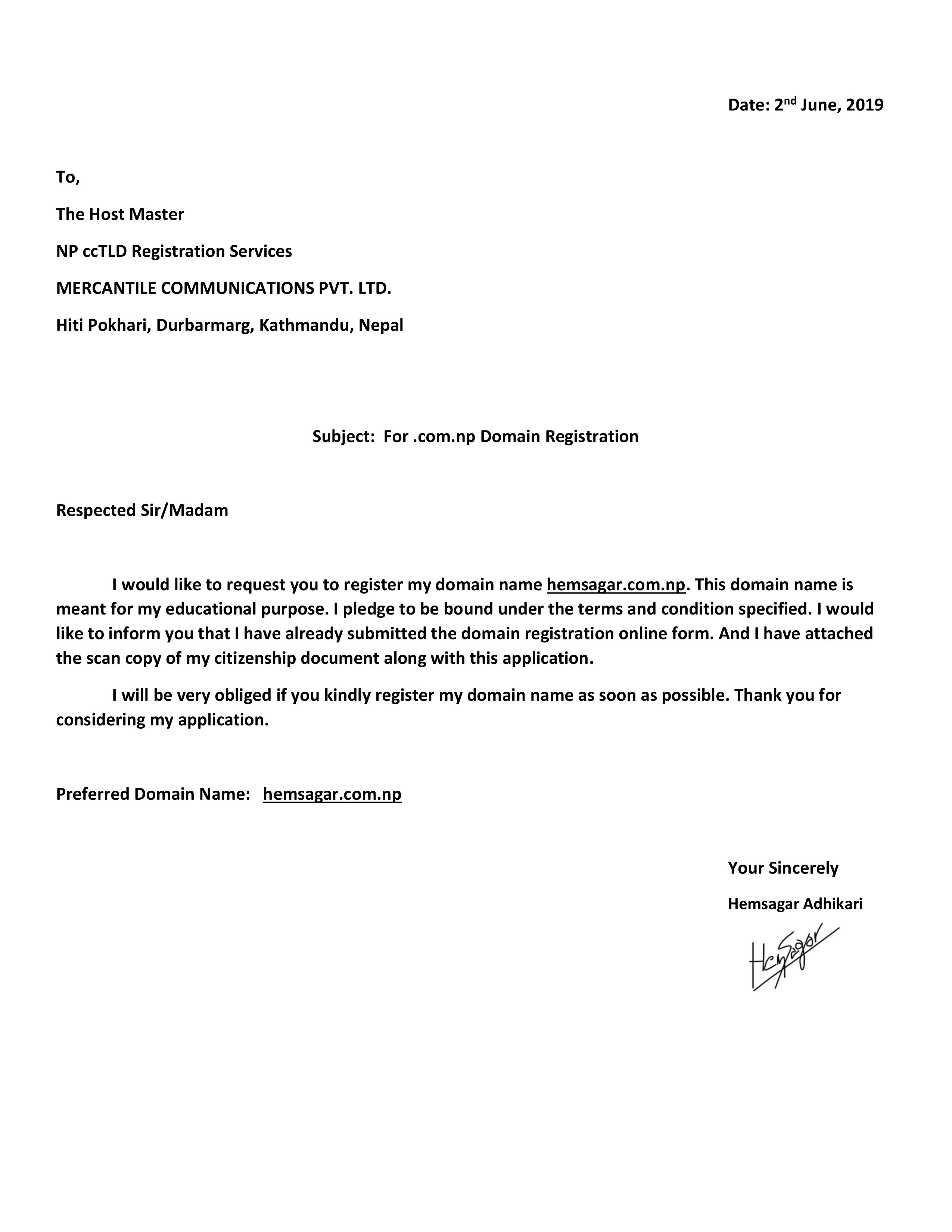
- From the Document Title drop down menu select Cover letter and Click Browse button from Attach your image copy section. Select your Cover letter saved in an image format generally JPG. And click Save Image button. I have uploaded a sample of cover letter below.
Coverletter Sample Photo
Coverletter Doc File
_______________________________________________________________________
Convert your doc to pdf and then covert it to JPG here: Smallpdf
_______________________________________________________________________ - Repeat same procedure from drop down menu for Citizenship document and click Save Image button again.
Note: Documents attached should be your own no fakes.
Step 7: Thats it now find Request domain button at the end of page, click it and you are Done!!
Now your request will be accepted within few hours of working day and Domain will be activated for you if you have carefully followed all the steps above. And if rejected its all your fault, hahahaha kidding try again, something must have gone wrong! Good luck!!
Thank you!!

Leave a Reply